
Download BeanCounter – Free Bookkeeping, Time Tracking & Invoicing Software for Mac
Overview
BeanCounter – Bookkeeping Time Tracking and Invoicing is a completely free Mac application designed for freelancers, small‑business owners, and anyone who needs a reliable way to manage finances without paying a subscription fee. Developed by Tidal Pool Software, BeanCounter belongs to the Business & Productivity category with a specific focus on Finance. Although it has a modest download history—only two installations since its catalog entry in 2016—it remains a solid, lightweight alternative to cloud‑based platforms that often charge per user or per month.
The current stable version is 2.0.8, released on 1 April 2017, and it runs natively on macOS X as well as earlier Mac operating system releases. The interface is presented entirely in English, and the program’s footprint is intentionally small, keeping the install size low enough not to clutter limited SSD space. Because BeanCounter is free, it does not require a license key or an online account, which means you can start tracking income, expenses, and billable hours instantly after a quick download.
Security is handled locally; all data stays on your Mac unless you choose to export or back it up manually. This local‑first approach is especially appealing to users who are cautious about storing sensitive financial information in the cloud. Overall, BeanCounter provides a no‑frills, straightforward solution for bookkeeping, time‑tracking, and invoicing without the distractions of ads, in‑app purchases, or forced upgrades.
Key Features
- Comprehensive Bookkeeping: Record income, expenses, and bank transactions with customizable categories, making it easy to generate profit‑and‑loss statements at any time.
- Integrated Time Tracking: Start, pause, and stop timers for individual projects or clients, then automatically convert logged hours into billable line items.
- Professional Invoicing: Create clean, printable invoices with your logo, payment terms, and tax details. Invoices can be exported as PDF or sent directly via the default mail client.
- Multi‑Currency Support: Although primarily aimed at U.S. users, BeanCounter allows you to set exchange rates manually for international clients.
- Data Export & Import: Export all records to CSV for use in spreadsheets or import previous bookkeeping data to keep continuity.
- Searchable Ledger: A powerful search bar lets you locate any transaction, client, or project within seconds, saving valuable time during audits.
- Custom Reports: Generate reports on revenue by client, expenses by category, or time spent per project, all of which can be printed or saved as PDFs.
- Automatic Updates (Legacy): While the last official update was in 2017, the application still checks for legacy patches to maintain compatibility with newer macOS releases.
- Lightweight Design: The program runs smoothly on older Mac hardware, requiring minimal RAM and CPU resources.
- Free & No Ads: BeanCounter delivers a full‑featured experience without any hidden fees or advertisements.
Installation & Usage Guide
Getting started with BeanCounter is intentionally simple. First, click the download button on the official Tidal Pool Software page; the file is provided as a standard .dmg disk image. Once the download completes, double‑click the .dmg file to mount it, then drag the BeanCounter icon into your Applications folder. macOS may prompt you with a security warning because the app is not notarized; simply open System Preferences → Security & Privacy → General and click “Open Anyway” to allow the installation. After the copy finishes, eject the disk image and launch BeanCounter from the Applications folder or via Spotlight.
The first launch presents a brief onboarding wizard. You’ll be asked to set up your company profile—enter your business name, address, and preferred currency. Next, define your primary expense categories (e.g., Office Supplies, Travel, Marketing) and income streams (e.g., Services, Products). This step customizes the dropdown menus you’ll use later, ensuring every transaction is consistently categorized. The wizard also offers an optional import of existing CSV files, which is handy if you’re migrating from a spreadsheet or another bookkeeping tool.
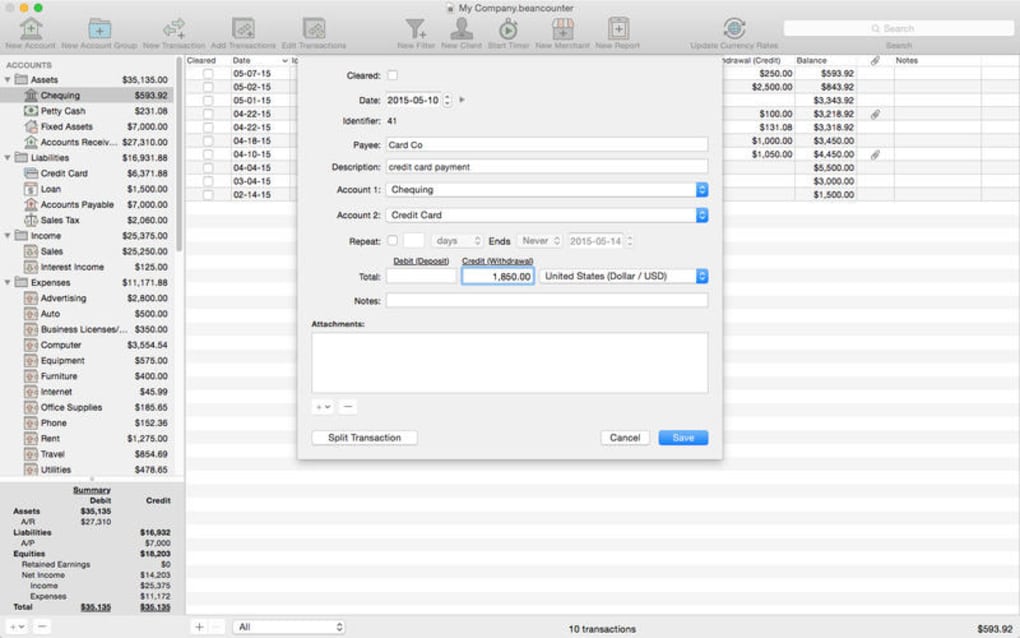
Once the setup is complete, the main dashboard appears with three primary tabs: Ledger, Time Tracker, and Invoices. In the Ledger tab, you can add new transactions by clicking the “+” button, selecting “Income” or “Expense,” and filling in the date, amount, client, and category. The Time Tracker tab works like a modern stopwatch; select a client or project, click “Start,” and the timer will begin counting. When you stop the timer, BeanCounter prompts you to confirm the billable rate and automatically adds the entry to the ledger as a revenue line item.
Generating an invoice is equally straightforward. Navigate to the Invoices tab, click “Create New Invoice,” and choose the client from your contact list. The app pulls any unbilled time‑tracking entries and allows you to add additional line items manually. You can customize the invoice layout by uploading a logo, setting payment terms (e.g., Net 30), and selecting the appropriate tax rate. When you’re satisfied, click “Save as PDF” or “Send via Mail” to deliver the invoice instantly.
Because BeanCounter stores data locally, it’s wise to back up your .bean database file regularly. You can locate the file by opening the “Preferences” menu, selecting “Backup,” and following the prompts to copy the file to an external drive or cloud storage service of your choice. This manual backup routine ensures you won’t lose critical financial data if your Mac encounters hardware issues.
Compatibility, Pros & Cons
Compatibility
BeanCounter is built specifically for macOS X and retains compatibility with earlier versions of the operating system. Users running macOS 10.9 (Mavericks) through macOS 10.14 (Mojave) report smooth operation, while those on newer releases such as macOS Catalina or Big Sur may need to allow the app to run under “Reduced Security” settings due to the lack of recent notarization. The program does not have Windows, Android, or iOS versions, so it is strictly a Mac‑only solution.
Pros
- Completely free with no hidden fees or subscription model.
- All‑in‑one solution for bookkeeping, time tracking, and invoicing.
- Lightweight and runs well on older Mac hardware.
- Local data storage ensures privacy and control over financial records.
- Customizable categories and reports tailored to small business needs.
- Easy CSV import/export for integration with other tools.
- Simple, uncluttered interface that reduces the learning curve.
- No ads or in‑app purchases disrupting workflow.
- Supports multi‑currency entries for international clients.
- PDF invoice generation with branding options.
Cons
- Last official update was in 2017; future macOS compatibility is not guaranteed.
- Lacks cloud sync, so collaboration across multiple devices is not possible.
- No built‑in tax calculation engine; users must enter tax manually.
- Limited support options—only community forums and basic email contact.
- No mobile companion apps for on‑the‑go time tracking.
- Export formats are limited to CSV and PDF; no direct integration with accounting platforms like QuickBooks or Xero.
- User interface feels dated compared to modern SaaS solutions.
- No automated bank reconciliation; all entries must be entered manually.
- Requires manual backup of the local database to prevent data loss.
- Cannot handle complex inventory management or multi‑project budgeting.
Frequently Asked Questions
Is BeanCounter really free, or are there hidden costs?
BeanCounter is 100 % free. There are no subscription fees, no in‑app purchases, and no ads. All features—including time tracking, invoicing, and reporting—are available without any extra charge. The only cost you might incur is the optional expense of backing up your data to an external drive or cloud storage service.
Can I use BeanCounter on the latest macOS versions like Ventura or Monterey?
BeanCounter was last updated in 2017, so it does not have official notarization for macOS Ventura or Monterey. However, most users can still run the app by adjusting the security settings: open System Preferences → Security & Privacy → General and allow the application to run despite the warning. Functionality remains stable, but you should keep a regular backup of your data.
How does BeanCounter handle tax calculations on invoices?
Tax must be entered manually. When you create an invoice, you can specify a tax rate for each line item or apply a flat tax percentage to the entire invoice. BeanCounter will then calculate the total amount, but it does not automatically fetch tax tables or adjust rates based on jurisdiction.
Is there any way to sync BeanCounter data across multiple Macs?
Because BeanCounter stores all data locally, there is no built‑in cloud sync. To share data between computers, you must manually copy the .bean database file via an external drive, AirDrop, or a cloud folder like Dropbox. After copying, open the file on the second Mac to continue working.
Can I import existing bookkeeping data from Excel or QuickBooks?
BeanCounter supports CSV import. You can export your data from Excel, QuickBooks, or any other accounting software as a CSV file, then use the “Import CSV” option in the onboarding wizard or from the Ledger tab. The import process maps columns to BeanCounter fields, allowing a relatively smooth migration.
Is there customer support available if I encounter a bug?
Support for BeanCounter is limited to email contact with Tidal Pool Software and community forums. Because the software is free and no longer actively developed, response times may be slower than for commercial products. Users are encouraged to search the forums for similar issues before reaching out.
Conclusion & Call to Action
If you’re a Mac‑centric freelancer, consultant, or small‑business owner looking for a no‑cost solution to manage finances, track billable hours, and generate professional invoices, BeanCounter remains a compelling choice. Its straightforward design, local‑first data storage, and all‑in‑one feature set make it especially attractive for users who value privacy and dislike recurring subscription fees. While the lack of recent updates and cloud sync may deter those who need real‑time collaboration, the program’s lightweight footprint and zero‑price tag outweigh those limitations for many solo entrepreneurs.
To get started, simply download the latest .dmg from the official site, follow the quick installation steps, and begin organizing your finances today. Remember to back up your data regularly, and consider using a cloud folder for manual syncing if you work on more than one Mac. With BeanCounter, professional bookkeeping is just a click away—download now and take control of your financial workflow without spending a dime.







